 Tap2Cal
Add to calendar link for emails, newsletters and websites.
Put one “Add to calendar” link into your email or newsletter – every reader saves your event in the calendar they actually use. No code, no plugin, no account.
Why most “add to calendar” buttons fail
Newsletter tools like Mailchimp, Brevo or Constant Contact can't attach .ics files to campaigns, and a Google Calendar link only helps Google users. Building separate buttons for Google, Apple and Outlook clutters the email and breaks easily.
With Tap2Cal you add one link. It opens a small event page that detects the device and offers the right option: Google Calendar, Apple Calendar via ICS, or Outlook on the web.
What your recipients see
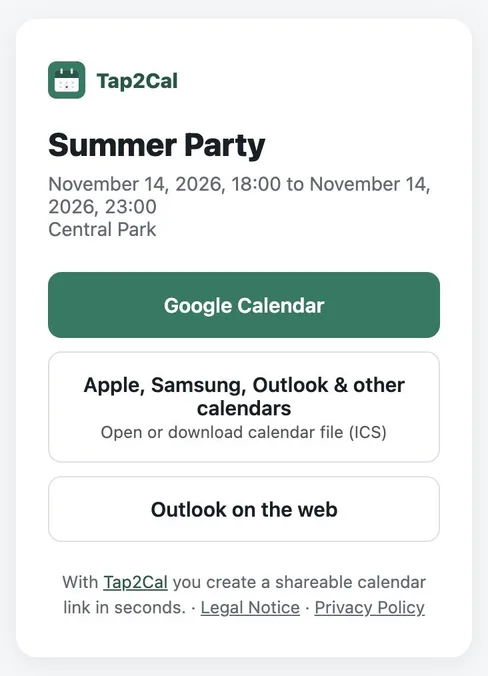
Whoever opens the link sees the event with name, date and location and picks their calendar with one tap – Google Calendar, Apple, Samsung and Outlook via ICS file, or Outlook on the web.
How to use the link in your email
Create the event above, copy the link and add it as a button or text link – for example “📅 Add to calendar”. It works in every email client and newsletter tool, in email signatures, on landing pages and in PDF invitations.
Tip: the link also has a preview image, so it looks good when your readers forward it via WhatsApp or social media.
Add to calendar link in 3 steps
Create the event
Enter name, date, optional time and location, then click “Create event”.
Insert the link
Paste the link behind an “Add to calendar” button or text in your email or newsletter.
Readers save it
Every reader picks Google, Apple or Outlook and saves the event with one click.
FAQ
Does it work with Mailchimp, Brevo or Constant Contact?
Yes. It is a normal link, so you can use it in any newsletter tool, email client or website builder.
Can I use one link for Google, Apple and Outlook?
Yes. That's the point: the event page offers Google Calendar, Apple/Samsung/Outlook via ICS file, and Outlook on the web.
Is the time zone correct for international readers?
Yes. The event is stored with your time zone and shown in each reader's local time.
How long does the link work?
Until 14 days after the end of the event. After that it is deleted automatically.